One button, one menu
Above the preview on the right: “Download PNG” and a ▾ next to it. The main button asks nothing: one click gives you a 2x PNG with a transparent background. Every other format is one level down in the ▾ menu:
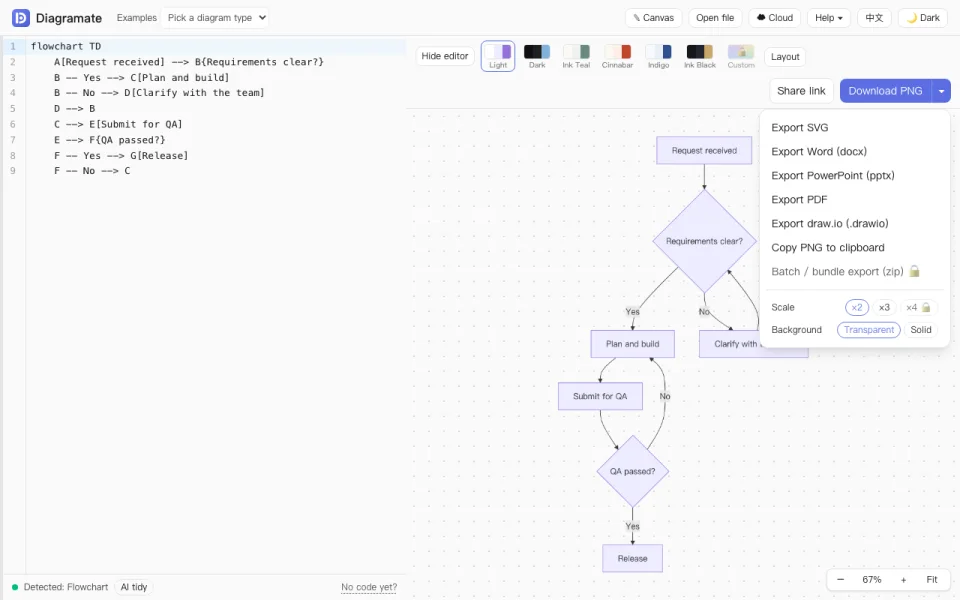
On a phone the same options are in the “Download” panel at the bottom. Try a full export with this one:
flowchart LR
    A[Code is ready] --> B{Where is it going?}
    B -- Chat / document --> C[Copy PNG to clipboard]
    B -- Hand over a file --> D[Export Word / PowerPoint]
    B -- Print --> E[Export PDF]
Edit the text, switch themes and download PNG, Word or PowerPoint from there.
Which format
| Where it is going | Use |
|---|---|
| A chat, Google Docs, Notion, Confluence | Copy PNG to clipboard, then paste |
| An image inside Word or PowerPoint | PNG (transparent, no white box on coloured pages); switch to ×3 for large prints, or export SVG |
| A file to hand over | Word (docx) / PowerPoint (pptx): high-resolution image embedded, original code appended |
| Printing, or people without Office | PDF: one page, sized to the diagram |
| Editing on in draw.io | draw.io (.drawio), see Round-trips with draw.io |
What the Word and PowerPoint files contain
- A high-resolution image in the current theme (3x, with the theme background): scaled to the page width in Word, centred on the first slide in PowerPoint.
- The original Mermaid code at the end (on a second slide in PowerPoint), plus a one-line credit.
The image cannot be edited inside Office. To change the diagram, copy the code from the file back into Diagramate, edit, and export again. That is why the code travels with the file.
Scale and background
Two rows at the bottom of the menu:
- Scale ×2 / ×3 (×4 on Pro). PNG pixels = diagram size × scale. ×2 is plenty for an A4 document; pick ×3 for projection or large prints.
- Background transparent / solid. PNG is transparent by default; Word, PowerPoint and PDF always use the current theme's background, so switch to Light first when you need white.
Dark themes (Dark, Ink Black) export with a dark background; switch back to Light before inserting into a white document.
Where the export happens
Entirely in your browser: SVG is the rendered output itself, the PNG is drawn from it locally, and the Word / PowerPoint / PDF files are assembled by local libraries. Nothing passes through a server, and without signing in your diagram is never uploaded. No watermark; free use allows 5 exports every 24 hours (clicking export only claims one from the server, sending the format but not the diagram), members have no limit.
Downloads blocked inside an app
Some in-app browsers refuse file downloads. Open the page in the system browser (the content is restored automatically) and download there, or use “Copy PNG to clipboard” and paste into the chat.
Several diagrams at once
The last item in the menu, “Batch / bundle export (zip)” (Pro): tick the current diagram, paste a whole AI reply containing several code blocks, add diagrams saved in the cloud, pick any mix of PNG, SVG, PDF, Word, PowerPoint, draw.io and Mermaid source, and get one zip.
Next
- Previous: Edit, lay out and fix
- The path ends here. Continue by scenario: flowcharts, mind maps, sequence diagrams, Gantt charts, research roadmaps, sharing and cloud save
- More on export: Putting the diagram into Word and PowerPoint, Why the PDF is a bitmap