What it does
You get Mermaid code (or a whole reply containing it) from ChatGPT or Claude, paste it into the editor, and it renders within half a second. Switch themes, download PNG, SVG, PDF, Word or PowerPoint. The layout is computed for you; changing a label or adding a step means changing the code, which is why the diagram re-flows cleanly every time. All of this is free, needs no account and adds no watermark; rendering and export happen in your browser.
Once the diagram is rendered you may want to change it: rename a node, add a step, color one step, or switch the whole thing to a hand-drawn look. All of that happens by clicking in the preview, and every change edits the code itself; Edit, lay out and fix covers it, while this guide follows the main path.
Step 1: open the editor and find your way around
Click “Editor” in the top bar, or paste straight into the box on the home page (it jumps to the editor for you). The editor opens with a sample flowchart loaded. Three areas:
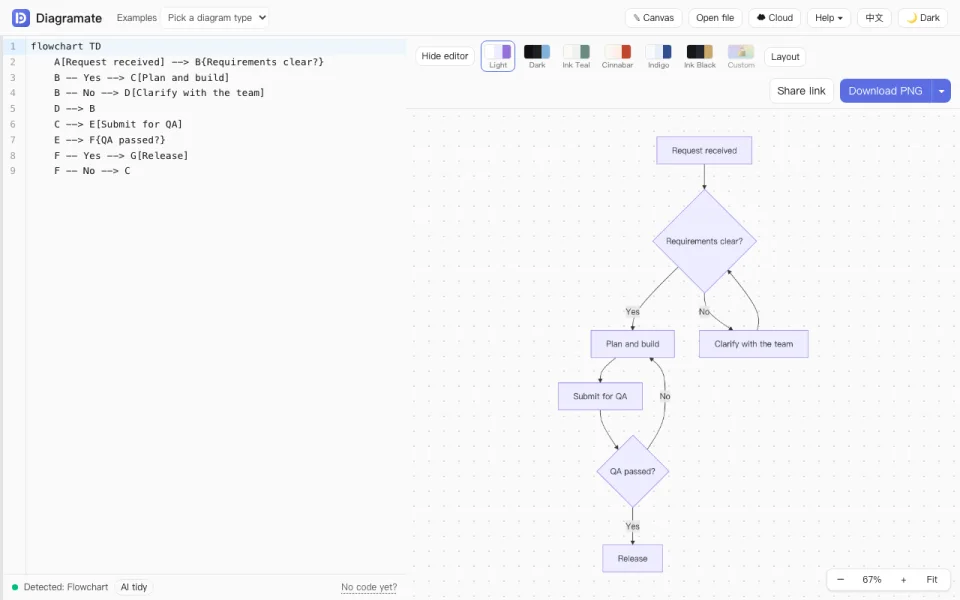
- Code on the left. This is where you paste the whole AI reply. The status line underneath reads “Detected: flowchart” and turns into an error bar when the code has a problem.
- Preview on the right. Scroll to zoom, drag to pan, zoom buttons in the bottom-right corner, double-click empty space to reset. In flowcharts and mind maps, double-click a node to edit its text.
- A row of tools above the preview: “Theme”, “Style”, “Layout” (direction and spacing for flowcharts), “Share link”, “Download PNG” and the ▾ menu next to it.
On the left of the top bar are the diagram’s name and save status (“On this device”, “Saved” or “Unsaved”; click it to open Cloud save), followed by “New”, “Open” and “Save”. On the right are “Help”, language, account and the light / dark switch. The first time you open the editor directly, a short feature tour points these out; to see it again, open “Help” → “Feature tour”.
Step 2: paste the whole reply
In your AI assistant, click “Copy” under the reply. Back in the editor, paste into the code area. You do not need to cut out the code block: paste everything, the Mermaid code inside is picked out and the explanation around it is ignored. The status line confirms with “flowchart code extracted from the reply”.
No reply at hand? Try this one first; click “Open in the editor”:
flowchart TD
    A[Request received] --> B{Requirements clear?}
    B -- Yes --> C[Plan and build]
    B -- No --> D[Clarify with the team]
    D --> B
    C --> E[Submit for QA]
    E --> F{QA passed?}
    F -- Yes --> G[Release]
    F -- No --> C
Edit the text, switch themes and download PNG, Word or PowerPoint from there.
No code yet? “No code yet?” at the right end of the status line has a ready-made prompt for each diagram type. Copy it, send it to your assistant, and paste the reply back. The next guide, Getting code that renders, goes into detail. If all you have is some text or a description, paste it into the box on the home page (or click “Describe a diagram” in an empty editor) and click “Draw it with AI”; see No code? Draw a diagram from text.
Step 3: pick a theme
Click “Theme” above the preview. The panel has three groups: Classic (Light, the default for documents and slides; Dark; and four designed themes), Hand-drawn (Paper, Crayon, Kraft, Chalkboard and Blueprint, with sketchy lines and handwriting) and Modern (the newer looks that ship with Mermaid). “Style” next to it tunes sloppiness, fill, stroke and font. What you see in the preview is what you export, background included. Your choice is remembered.
Step 4: download
“Download PNG” gives you a 2x, transparent PNG that sits on any page without a white box. For other formats, open the ▾ menu:
- SVG: vector, sharp at any size, editable in Illustrator or Figma;
- Word (docx) / PowerPoint (pptx): a high-resolution image embedded, with the original Mermaid code appended so you can come back and edit;
- PDF: one page, sized to the diagram;
- Copy PNG to clipboard: paste straight into a chat or document, the quickest route;
- at the bottom of the menu: scale (×2 / ×3) and transparent / solid background.
Downloads need no account and carry no watermark; free use allows 5 exports every 24 hours, members have no limit. Details in Export to Word, PowerPoint and PDF.
Will I lose my work?
The editor saves its content in this device's browser automatically; reload or close and reopen and it comes back (a bar at the top says “Restored your last edit”). To continue on another device, sign in and save the diagram to the cloud. Without signing in, nothing is uploaded.
On a phone
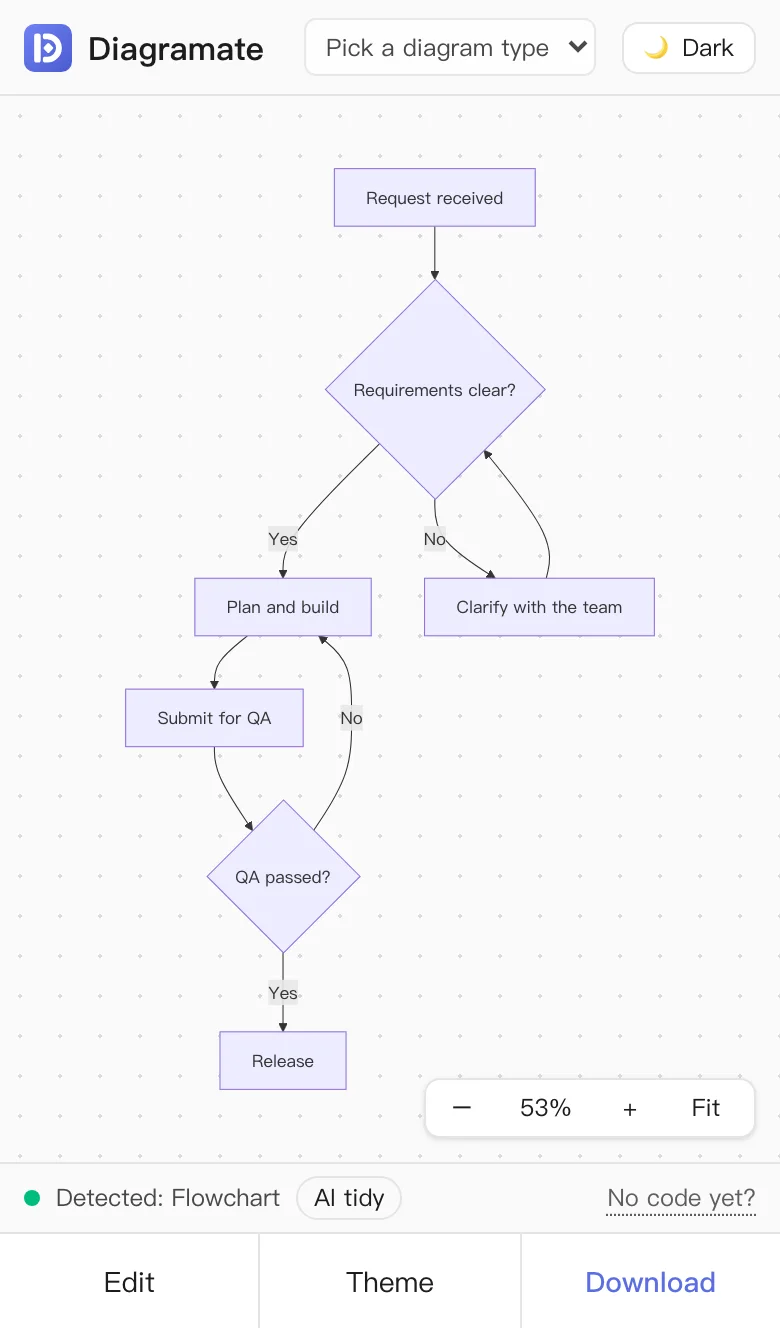
Open the same address in your phone's browser. The preview takes the top half; three buttons sit at the bottom: Edit (opens the paste area), Theme and Download. After you paste a reply and the code is detected, the drawer closes and the preview grows; if the code has an error, the drawer stays open. Inside apps that block downloads, open the page in the system browser, or use “Copy PNG to clipboard”.
Next
- Next: Getting code that renders on the first try
- Changing text, adding steps, fixing errors: Edit, lay out and fix
- Straight to your diagram: flowcharts, mind maps, sequence diagrams, Gantt charts, research roadmaps
- No code, just text: Draw a diagram from text