Free canvas: move the diagram into Excalidraw to drag, relabel and sketch
About 4 min · Updated 2026-09-06
When the canvas is the right tool, how the one-way conversion works, which diagrams split into shapes and which arrive as one picture, the tools and menu, starting from a blank canvas, where it is saved, and downloading PNG, SVG, Word, PowerPoint or .excalidraw.
When to use the canvas
Code-to-diagram has real advantages: the layout is computed, changing text or adding steps is a code edit, so the diagram re-flows cleanly and an AI can generate it. Sometimes you still want to arrange by hand: nudge two nodes apart, circle something and write a note, drop in a screenshot, or hand a sketch-style version to a colleague. That is what the canvas is for.
The canvas is Excalidraw (an MIT-licensed open-source whiteboard) embedded as is, in a handwritten font. It is the second mode, next to code-to-diagram, and just as free.
Converting: a one-way door
- Render the diagram in the editor first (conversion is blocked while the code has an error). Try this one:
flowchart LR
    A[Design review] --> B{Approved?}
    B -- Yes --> C[Build]
    B -- No --> D[Revise] --> A
C --> E[Test] --> F([Release])- Click “Canvas” in the top bar (on a phone: “Convert to free canvas…” in the “Download” panel).
- The dialog explains that after conversion the canvas and the code no longer sync: editing the code, running AI fix or switching themes leaves the canvas alone, and changes on the canvas do not flow back; the code stays in the editor. Click “Convert to canvas”.
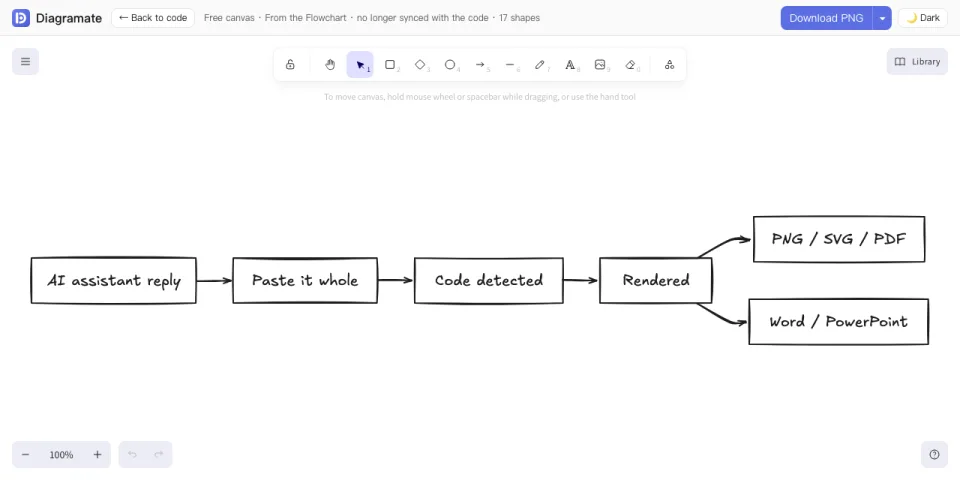
Flowcharts, sequence diagrams, class diagrams, state diagrams and ER diagrams split into editable shapes: nodes, connectors and labels are separate, so you can drag, relabel, delete or add. Gantt charts, pie charts, mind maps, timelines and the other types arrive as a single image that you can position, resize and annotate next to, but not take apart. The dialog tells you which case applies.
What you can do on the canvas
The toolbar runs along the top: selection, rectangle, ellipse, arrow, line, text, freehand, image, eraser. Double-click a shape to edit its text; drag to move; box-select to move several. The menu in the top left has: convert the editor code again (replaces the whole canvas), open an .excalidraw file, clear the canvas, canvas background, shortcuts and help. The library panel on the right stores shapes you reuse.
“Back to code” returns to the editor at any time and keeps the canvas; the next time you click “Canvas” it asks whether to open the existing canvas or convert the current code again.
Starting blank
You can skip the code entirely: “Open the canvas” under “Mode two, free canvas” on the home page opens a blank canvas (or the canvas saved on this device).
Where it is saved
The canvas is saved in this device's browser, separately from the code, and is not uploaded, not part of cloud save and not part of share links. With many images it can exceed 4 MB; you get a warning, and downloading the .excalidraw file keeps a copy you can reopen from the menu.
Downloading
“Download PNG” in the top right of the canvas; the menu adds SVG (with the handwritten fonts embedded, so it looks the same elsewhere), PDF, Word, PowerPoint, copy PNG, and the .excalidraw file for reopening later. Scale and transparent / solid work as for single diagrams. Word and PowerPoint carry no code appendix here, because the canvas no longer has code.
Related
- Free canvas: drag, relabel and sketch in Excalidraw (the full Help Center article with FAQ)
- Only need direction and spacing, without giving up the code: Edit, lay out and fix
More guides
- Flowcharts from an AI reply, exported to Word
- Mind maps from an AI reply: mindmap syntax, indentation and export
- Sequence diagrams from an AI reply: API calls and system interactions
- Gantt charts from an AI reply: project schedules and thesis timelines
All guidesLooking for a specific answer? Try the Help Center